How Can We Help?
How to Automatically Update the Calendar for Amenity Reservations
Overview
RunHOA allows you to automatically add amenity reservations to the calendar when a booking is made.
Steps
- Go to:
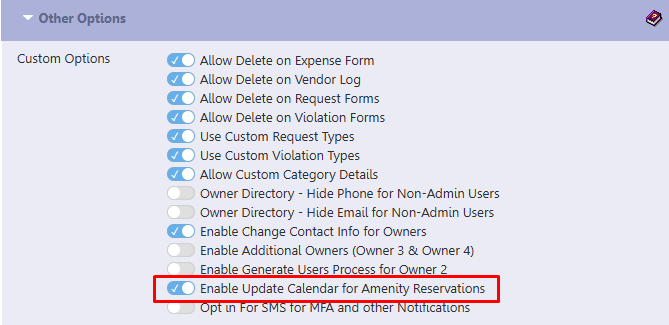
Administration → Setup → Other Options - Enable the option:
Enable Update Calendar for Amenity Reservations - Click Save
What Happens Next
- When an amenity is booked:
- A calendar event is automatically created
- The event includes:
- Amenity name
- Reservation date
- Reservation time
- When a reservation is cancelled:
- The corresponding calendar event is automatically removed
Notes
- Calendar events are created based on the reservation details entered.
- If a time slot is selected, it will appear as a timed event; otherwise, it may appear as an all-day event.
- Make sure your calendar is set to the correct year to view the event.